การตั้งค่าเครื่องหลัก
Share Folder Network Path
1. คลิกขวาที่  ไปที่ Open file location
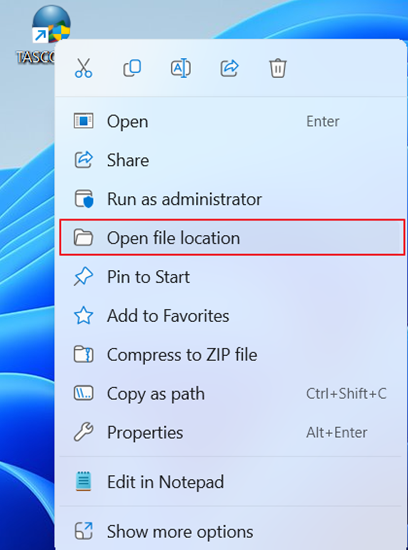
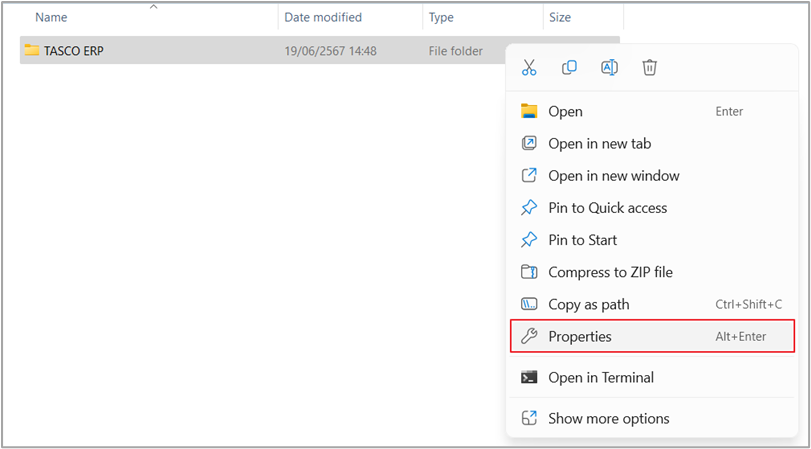
2. คลิกขวาที่ Folder TASCO ERP แล้วไปที่ Properties
3. คลิกที่ Sharing >Advanced Sharing

เมนู |
รายละเอียด |
|---|---|
หมายเลข 1 |
คลิก Sharing |
หมายเลข 2 |
คลิก Advanced Sharing |
4. ติ๊กที่ Share this folder > Permissions
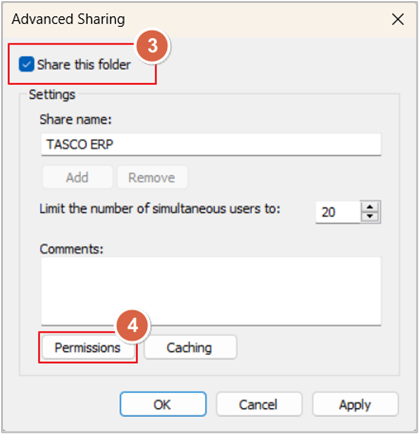
เมนู |
รายละเอียด |
|---|---|
หมายเลข 3 |
คลิก Share this folder ให้แสดงเครื่องหมายถูก |
หมายเลข 4 |
คลิก Permissions |
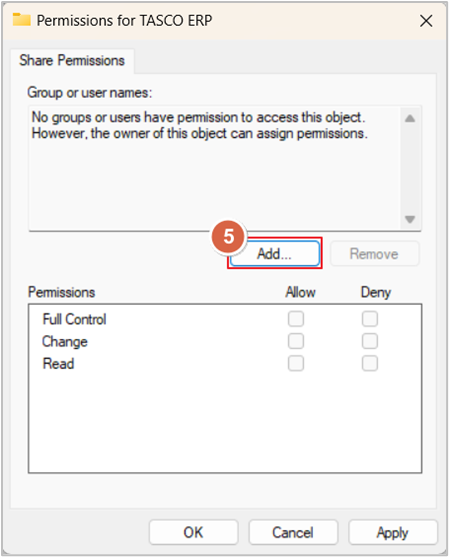
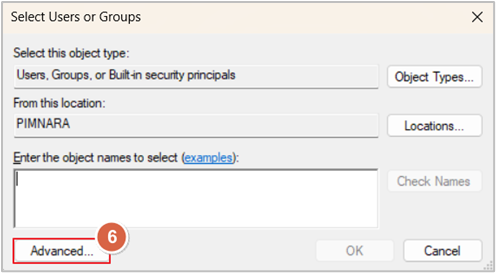
5. คลิก Add > Advanced
|
|
เมนู |
รายละเอียด |
|---|---|
หมายเลข 5 |
คลิก Add |
หมายเลข 6 |
คลิก Advanced |
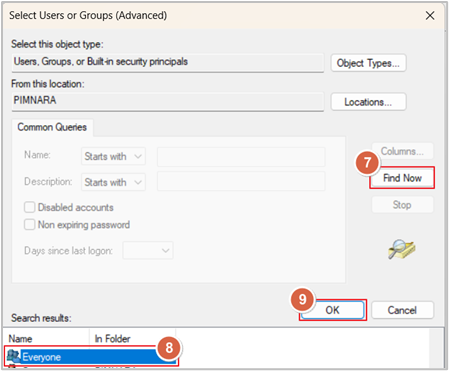
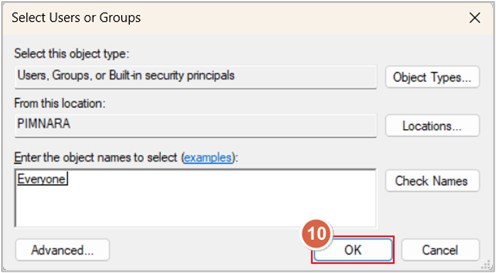
6. คลิก Find Now > เลือก Everyone > OK
|
|
เมนู |
รายละเอียด |
|---|---|
หมายเลข 7 |
คลิก Fine Now |
หมายเลข 8 |
เลือก Everyone |
หมายเลข 9-10 |
คลิก OK |
7. เลือก Everyone > ติ๊ก Allow ทั้งหมด > OK
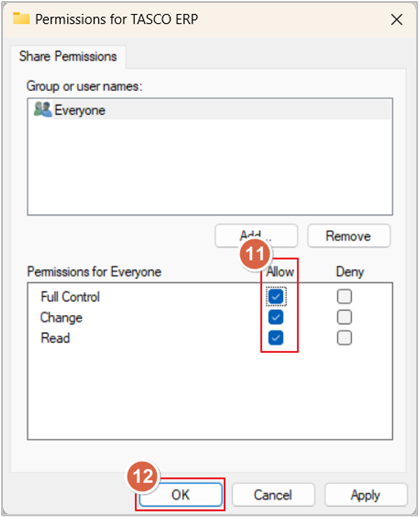
เมนู |
รายละเอียด |
|---|---|
หมายเลข 11 |
คลิก Full Control ให้แสดงเครื่องหมายถูกทั้งหมด |
หมายเลข 12 |
คลิก OK |
8. เมื่อกำหนดครบแล้ว Network Path จะแสดง folder ที่แชร์

เมนู |
รายละเอียด |
|---|---|
หมายเลข 13 |
จะแสดง Folder Network Path |
หมายเลข 14 |
คลิก OK เพื่อปิดหน้าต่าง |
การ Setting เครื่อง User
1. เปิดหน้าต่าง Run ด้วยการกดปุ่มคีย์ลัด Windows + R นำ หรัส IP เครื่อง Server มาใส่ > OK
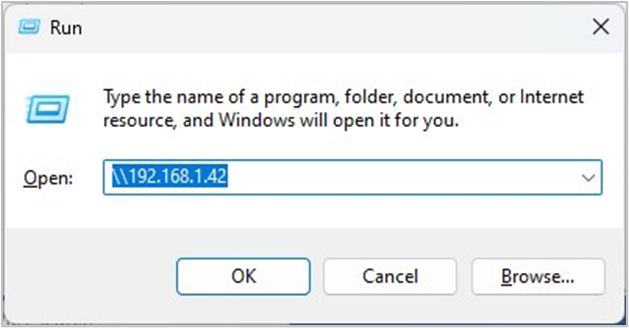
ในกรณี ที่มีการแจ้งให้ใส่ User name และ Password ดังภาพ
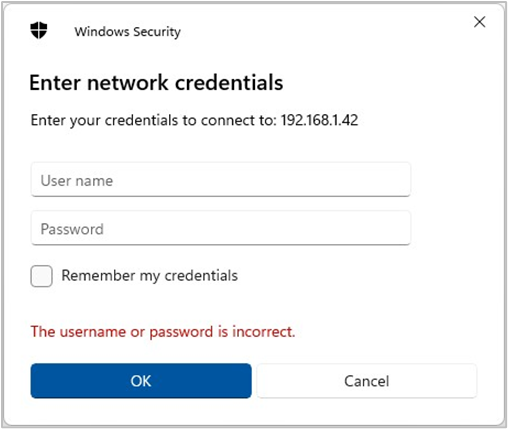
ให้ทำดังภาพต่อไปนี้
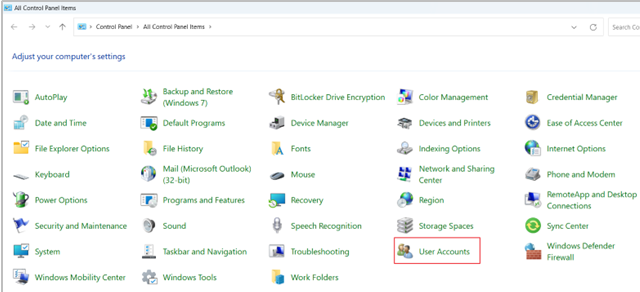
1. ไปที่ Control Panel
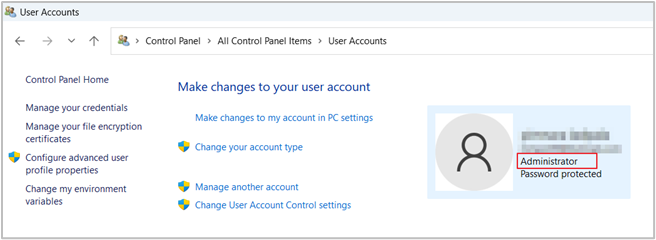
2. คลิก User Accounts
3. จะแสดงชื่อ User name
กรณีที่ต้องการปิดการใส่รหัสผ่าน
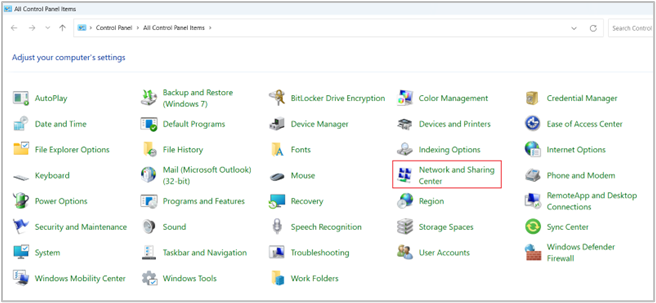
1. ให้ไปที่ Control Panel > Network and Sharing Center
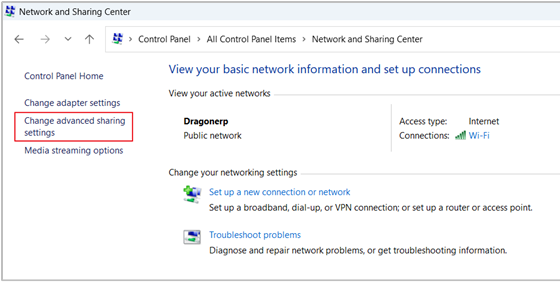
2. คลิกที่ Change advanced sharing settings
3. คลิกที่ All networks
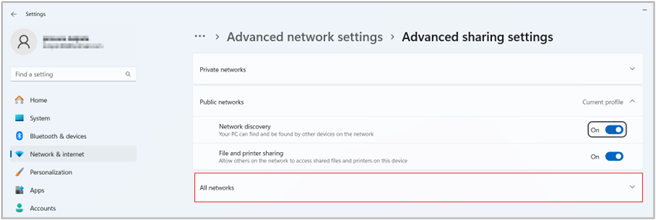
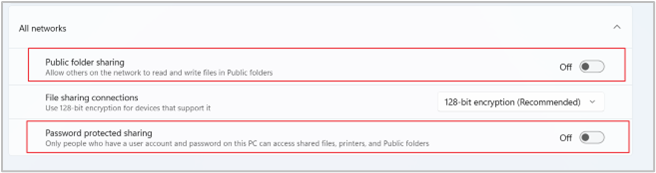
4. หาก On อยู่ให้เป็น Off ทั้งหมด
2. ใส่ User name ที่ได้จากเครื่อง Server > คลิก OK
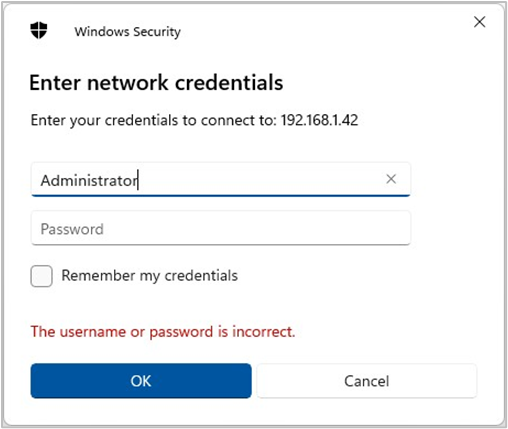
3. คลิก OK จะเข้ามาที่หน้าForder ที่เครื่อง Server แชร์มา > คลิกที่ Tasco erp แล้ว copy ลิงค์

4. จากนั้น เข้าสู่ระบบโปรแกรม TASCO ERP และกดตามเมนู ดังภาพต่อไปนี้
4.1. Update parameters
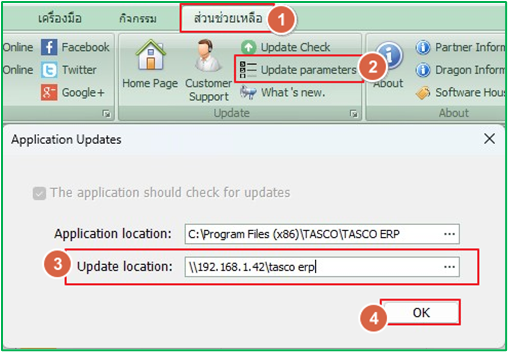
เมนู |
รายละเอียด |
|---|---|
หมายเลข 1 |
เข้าไปที่ Help (ช่วยเหลือ) |
หมายเลข 2 |
คลิกที่ Updata paramers |
หมายเลข 3 |
นำลิงค์ที่ Copy ของเครื่อง Server มาใส่ในช่อง Update location แล้วคลิก OK |
4.2.. Update Check
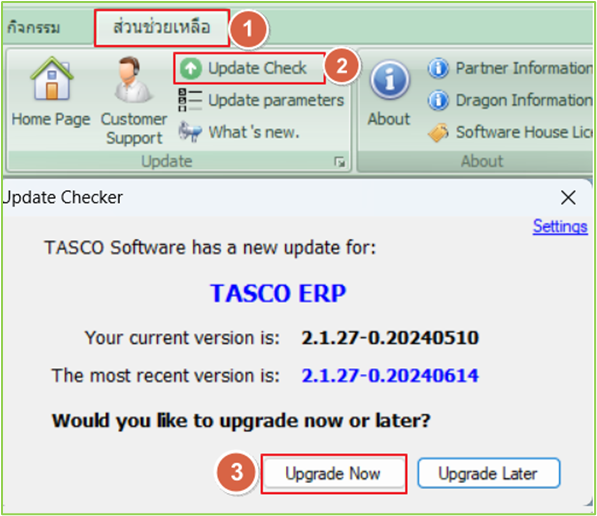
เมนู |
รายละเอียด |
|---|---|
หมายเลข 1 |
เข้าไปที่ Help (ช่วยเหลือ) |
หมายเลข 2 |
คลิกที่ Updata Check เพื่อเช็คว่า Version ตรงกันหรือไหม |
หมายเลข 3 |
กรณี Version ไม่ตรงกันให้คลิกที่ Upgrade Now เพื่อทำการ Update Version ให้ตรงกัน |